How to use Asteroid
Online manual — easier to keep up to date than the in-app Getting Started text. Last updated: July 16, 2026
1. Set up your library
Asteroid plays audiobooks you already own. Your audio files stay in a cloud folder you choose (for example Dropbox or OneDrive). The app downloads what you need to the device for listening.
- Open Settings → Data location.
- Pick a cloud data provider and sign in.
- Choose the folder that contains your audiobooks (or shelves of books).
- You can turn on more than one provider and add more than one folder.
Asteroid does not run its own servers. Library files live in your cloud account and on your device cache.
2. Index, scan, and resolve
After you add a library folder, Asteroid runs three steps:
- Index — finds folders and audio files.
- Scan — reads book folders and embedded tags.
- Resolve — matches title/author (for example via Open Library) for covers and descriptions.
Large libraries take time. Watch progress under Status (cloud icon in the top bar). You can pause background work from Status or the notification when needed.
3. Browse your books
The main library screen uses tabs such as Latest Played, Shelf, Author, Series, and Finished. The mini-player at the bottom stays available while you browse.
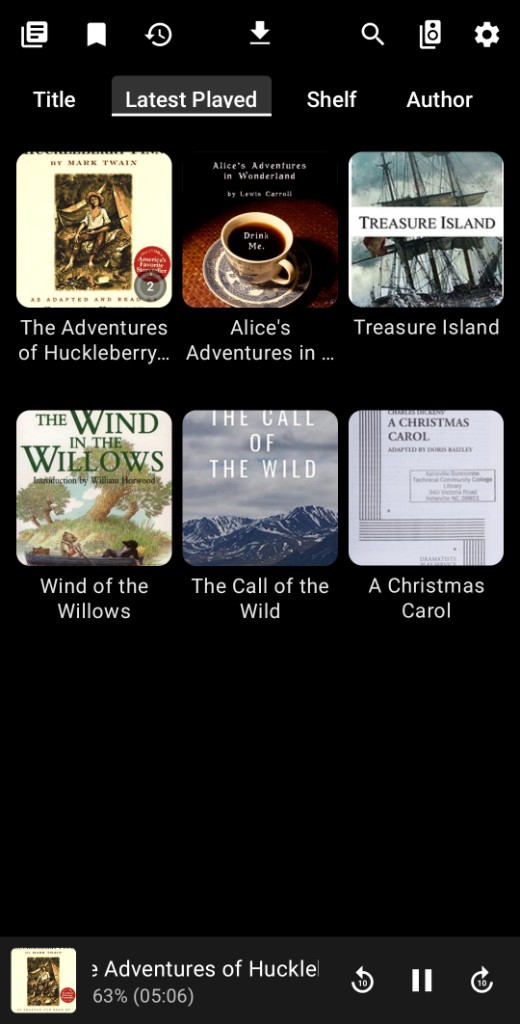
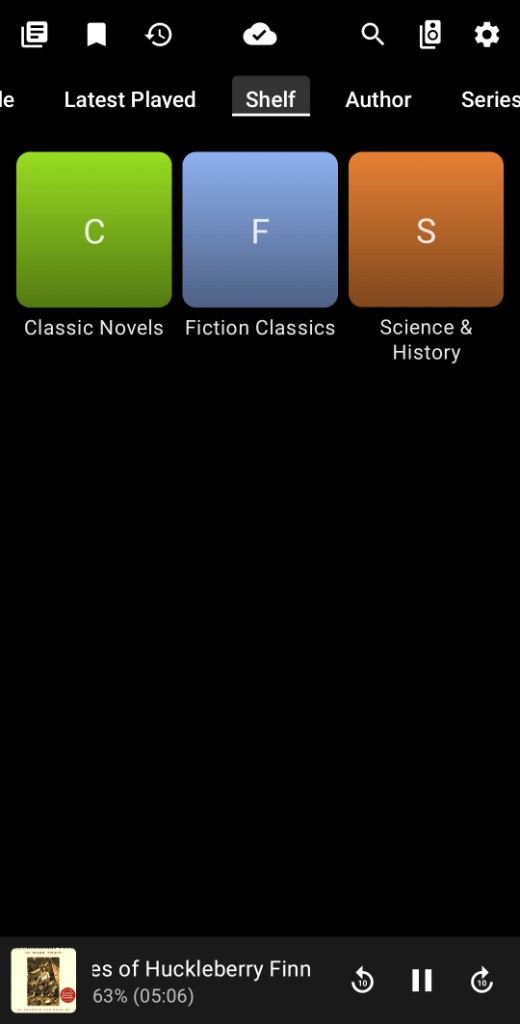
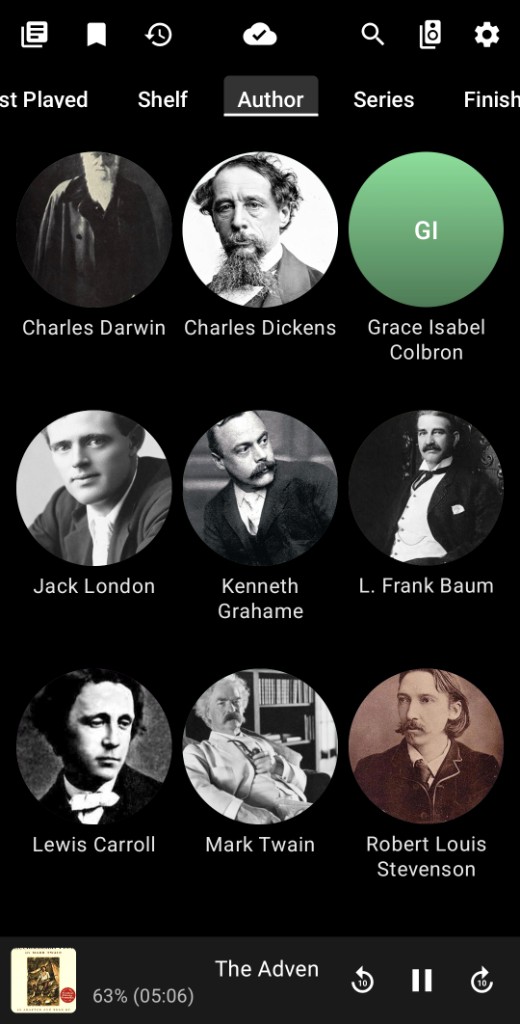
Top-bar icons (typical layout): library / bookmarks / listening history / status / search / audio output / settings. Exact icons can vary slightly by screen.
4. Play a book
Tap a cover to open book details. Use the large play control on the cover to start or resume.
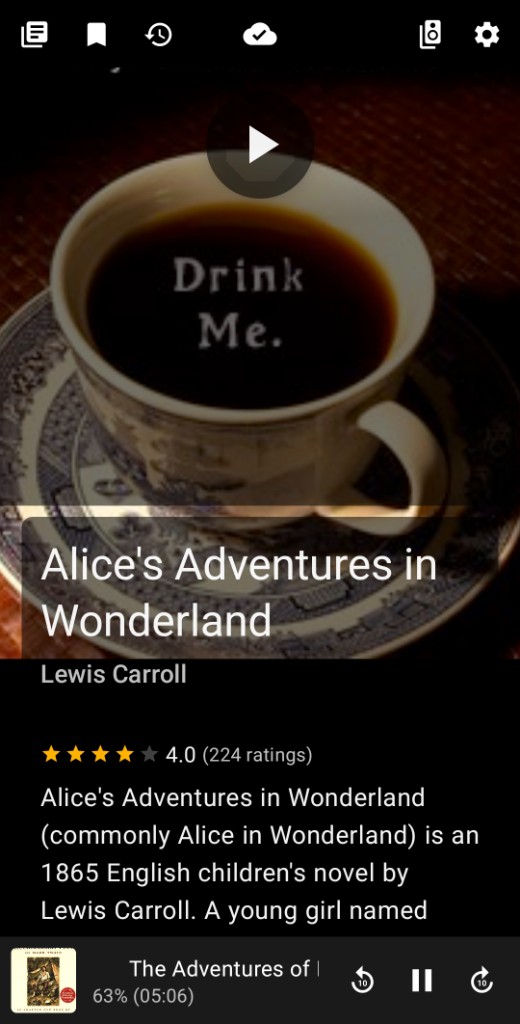
The first track may download before audio starts. A wait indicator can appear on play while the file is prepared. Progress and downloads continue in Status.
5. Now playing controls
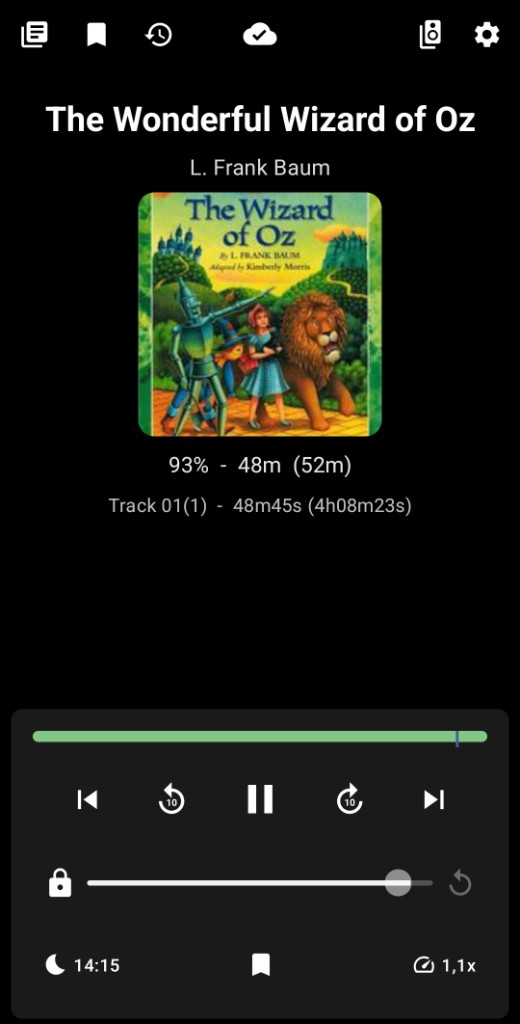
The full player shows title, author, cover, overall progress, and track position. Use skip chapter, ±10 seconds, sleep timer, bookmark, and speed from the control panel.
6. Listening history (safety net)
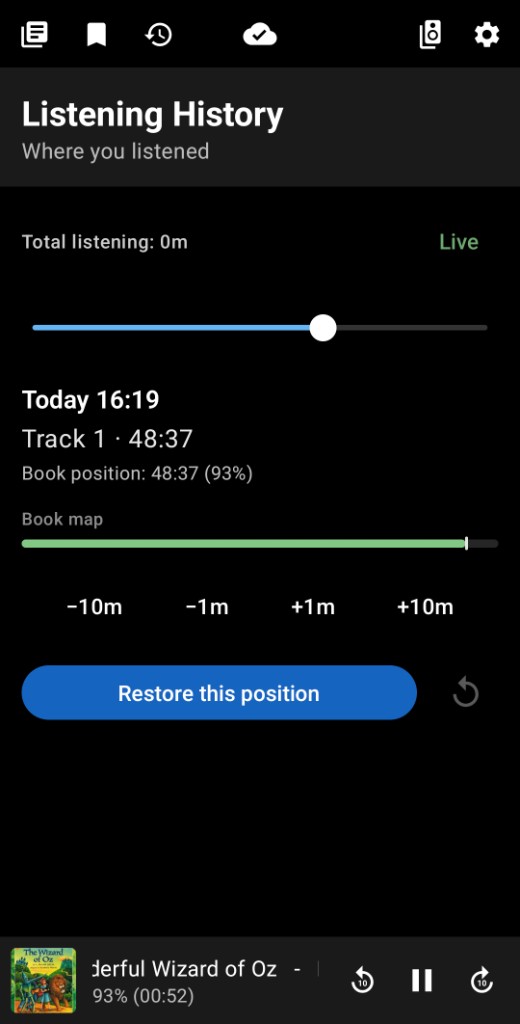
Open the history (clock) icon to see recent listening positions for the current book. If you jump ahead by mistake or lose your place, pick a session and tap Restore this position.
7. Folder and file naming tips
Best results usually come from:
- One audiobook per folder named
Author - Title - Tracks named in play order (
Track01.mp3,Track02.mp3, …) - Clean title/author tags — avoid years, bitrates, and rip labels in folder names
- Optional shelves and series folders under your library root (see in-app Getting Started for examples)
Preferred formats: MP3 and M4B.
8. More help
- Troubleshooting — common problems and quick checks
- In the app: Settings → Help & info → Getting Started (short version always on device)
- Feedback: asteroid@jlundmark.org